Features

Everything DRL-FileSync does, and how simple it is

Each feature below shows the steps. Most take two or three taps.

Getting started

Set up in minutes

Scan one code and you are connected

Scan one code and you are connected

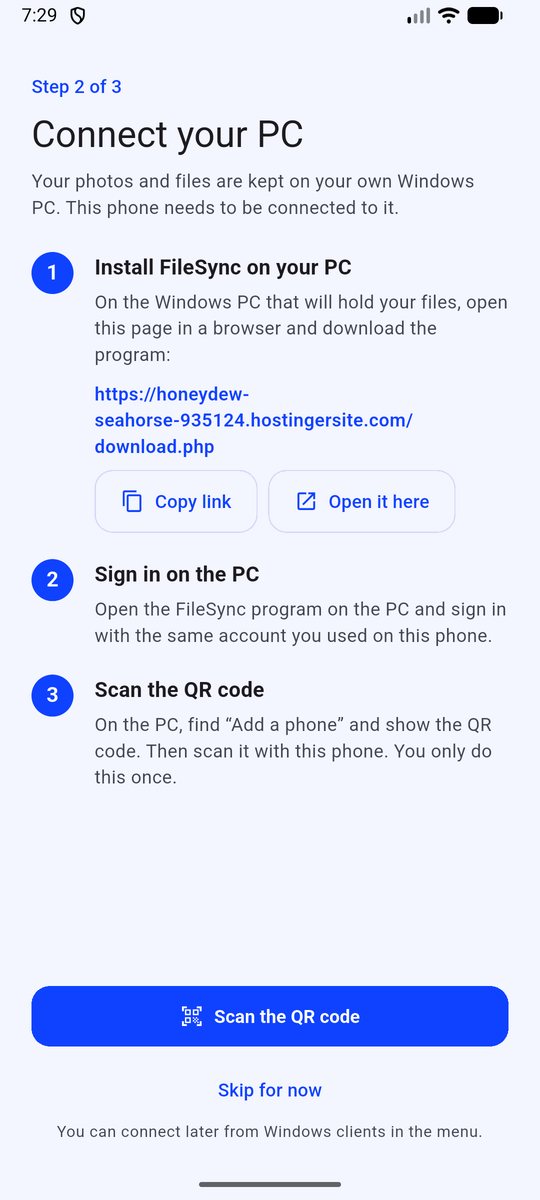
Install DRL-FileSync on your PC and it shows a QR code. Scan it with the app and tap Sign it in. Your phone and PC are paired and signed in, with no password typed on the PC.

  1. Open DRL-FileSync on your PC
  2. Scan the code with the phone app
  3. Tap Sign it in
A guided first set-up with one question

A guided first set-up with one question

The PC asks for a single working folder, where everything from your phone lands. Backup folders on another drive are optional and can wait. It warns you about nearly full, network or removable drives.

  1. Pick a working folder
  2. Done. Add backup drives later if you want

Photos and videos

Your memories, backed up by themselves

Automatic backup in original quality

Choose the folders you care about. New photos and videos go to your PC on their own, as soon as it can be reached, exactly as you took them. If the PC is off they wait on the phone.

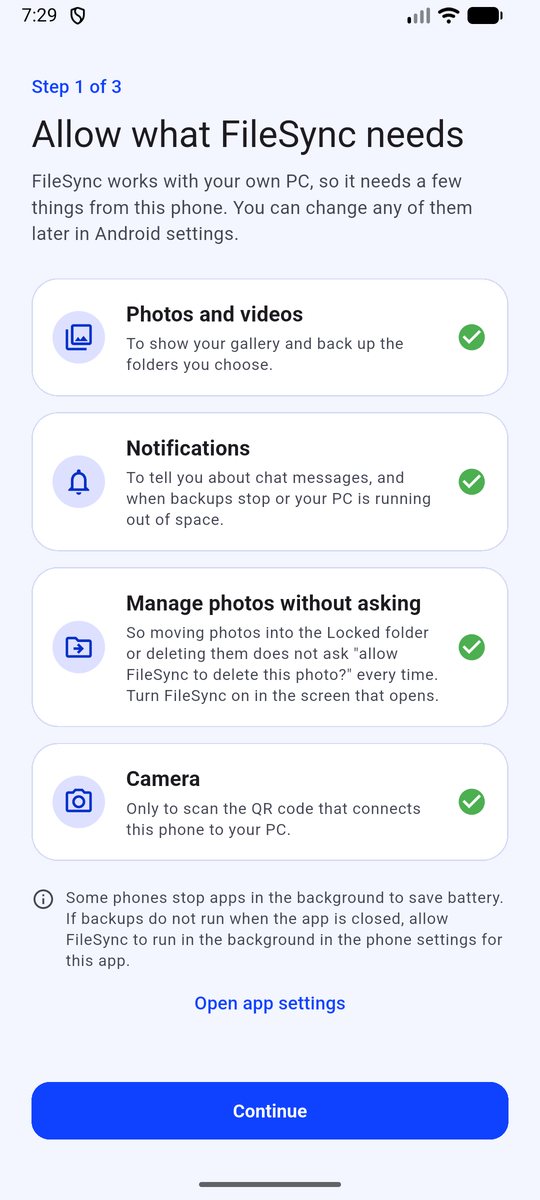
  1. Open Backup settings
  2. Tick your photo folders
  3. That is all. It runs by itself
One gallery for phone and PC

One gallery for phone and PC

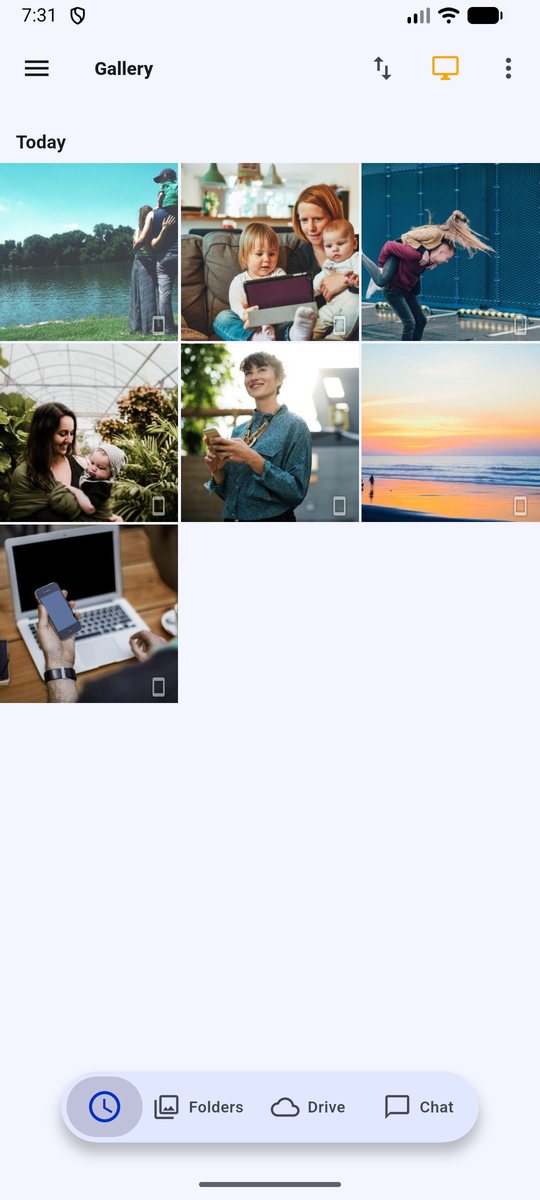
Photos on your phone and everything already on your PC appear together, by date. A small icon on each one shows whether it is on the phone, on the PC, or both.

  1. Open the gallery
  2. Scroll by date
  3. Tap any photo or video to open it

Free up phone space in one tap

When the phone gets full, DRL-FileSync frees space only after your PC has confirmed it holds the photos. They stay in your gallery.

  1. Tap Free up space
  2. Confirm
  3. Photos stay visible, the space comes back

Videos start at once

Big videos play while they arrive, with swipe gestures, full screen and a seek bar, instead of waiting for the whole file.

  1. Tap a video
  2. It plays right away

A Bin that undoes mistakes

Deleted photos and files wait 30 days in a Bin, on the phone and on the PC, before they are gone for good.

  1. Delete a photo
  2. Open the Bin
  3. Tap Restore

Files

A Drive that lives on your own PC

Open any file from your phone

Documents, PDFs, videos, whole folders. Make folders, rename, move and delete. Drop files into the Drive folder with Windows Explorer and they appear on the phone.

  1. Open Drive
  2. Browse like a normal folder
  3. Tap a file to open it

Send from the PC to the phone with a right-click

Right-click any file on your PC, choose Send to phone, and it shows up on your phone. Big ones too. No cables, no email.

  1. Right-click a file
  2. Choose Send to phone
  3. It arrives on the phone

See everything on its way

Watch what is being sent, how far it has got and how long is left, on your phone and on your PC. Pause it, stop it, or carry on later, from either one.

  1. Open Phone Transfers
  2. See your files on their way
  3. Pause, resume or cancel with one tap

Share from the phone to the PC

Found something on your phone that you want on your PC? Tap Share, then Share to PC. Links and files are there a moment later.

  1. Tap Share in any app
  2. Choose DRL-FileSync
  3. It appears on your PC

Send web pages with the browser extension

Send a link, text, image or whole page from your browser to your phone, with one click.

  1. Click the extension
  2. Pick what to send
  3. It shows up on the phone

Family and sharing

Made for the whole family

Chat and send files to each other

Everyone signs in with their own account and gets their own folders on the family PC. Chat and send photos and files straight to each other's phones.

  1. Open Chat
  2. Pick a person
  3. Type, or attach a photo or file

Send photos and files by touching two phones

Hold two phones together to send photos and files to each other. Perfect for a quick share with family sitting next to you.

  1. Choose what to send
  2. Pick Tap to share
  3. Touch the phones together

Share links that expire

Make a link to chosen photos or videos. It has a time limit, can be view only, and shows how often it was opened.

  1. Select photos
  2. Tap Share link
  3. Send it. It expires by itself
Find the people in your photos

Find the people in your photos

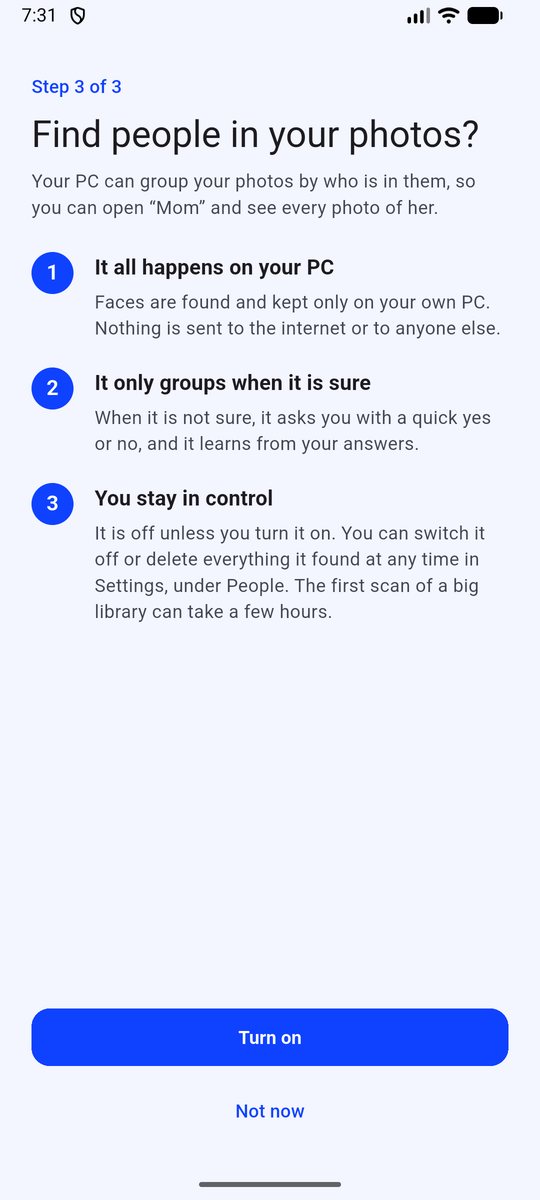
Turn on People and your PC groups photos by who is in them, so you can open “Mom” and see every photo of her. It runs only on your PC, it is off until you say yes, and one button deletes it all.

  1. Switch on People in Settings
  2. Open a person
  3. Answer Yes or No when it asks

Make it yours

Edit and create on the phone

Quick edit studio

Swipe through looks, add effects, text, stickers and drawings, frames, a blurred portrait background, and hide faces.

  1. Open a photo
  2. Tap Edit
  3. Swipe a look, save

Collages in a few taps

Pick photos, pick a layout, and save a collage.

  1. Select photos
  2. Tap Collage
  3. Choose a layout

Private by design

Your files, your keys

Wi-Fi mode: fast at home, no internet needed

At home the phone finds your PC and sends everything over your own network, with no mobile data and no internet. Away from home it connects directly over the internet on plans that include it.

  1. Nothing to switch on
  2. It uses Wi-Fi mode whenever you are home

Encryption and a Locked folder

Turn on encryption and the PC stores photos and files scrambled. Put private photos in a Locked folder, and People never scans them.

  1. Open Settings
  2. Switch on encryption
  3. Use the Locked folder for private photos

Fix problems in one tap

If DRL-FileSync ever stops doing its job in the background, one page checks everything and sets it right for you.

  1. Open Settings, then Help and about
  2. Tap Fix permissions
  3. Tap Fix everything

Plugins and connected apps

Add extras as separate small apps. Another app can ask for a private folder on your PC, and only if you say yes.

  1. Open Plugins
  2. Pick one
  3. Approve what it may use

See it on your own phone

It takes a few minutes to set up and costs nothing to try.

Create a free account